

Creating Image Variables
Define Variables
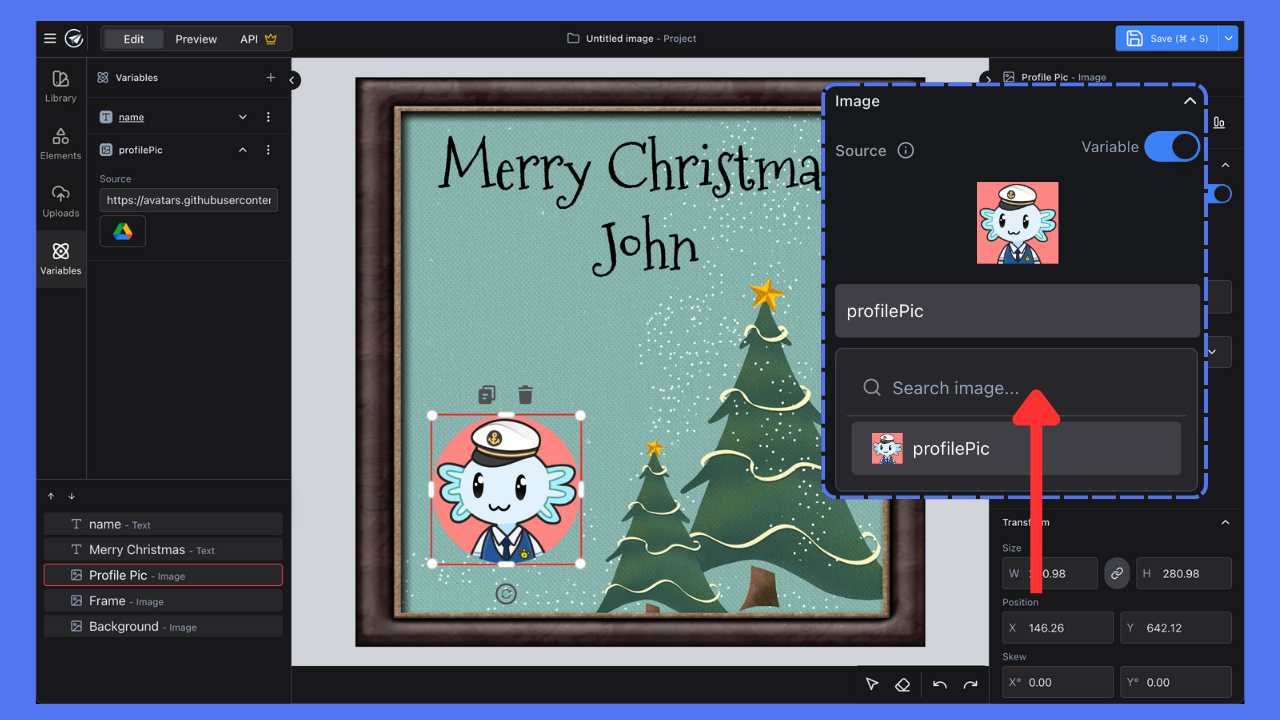
- Open the Variables panel in the left sidebar
- Click the
+button to create a new variable - Select
Imageas the variable type - Provide:
- Variable name
- Default image URL (supports Google Drive shared links)
Supported Formats
- JPEG/JPG
- PNG
Applying Image Variables
Set Variable Images
- Select an image element in your design
- In the right panel, locate the Image settings
- Toggle the Variable switch to ON
- Select your image variable from the dropdown
- The image will update to show the default URL preview
Best Practices
- Use direct image URLs
- Ensure Google Drive links are properly shared
- Verify image formats before setting variables